Campaign Tracking Without Google Analytics (Link Tracking in Google Sheets)
Google Analytics is powerful — but it’s not always the right tool for day-to-day campaign tracking.
Many teams don’t need full behavioral analytics for every campaign. They simply want to answer practical questions like:
- Which campaign link got the most clicks this week?
- Which country is responding best?
- Are mobile users clicking more than desktop?
- Did an influencer link perform better than email?
- Did clicks spike after a specific post?
If you’ve ever felt that GA4 is too heavy for simple campaign reporting, you’re not alone.
In this guide, you’ll learn a lightweight approach: link-level campaign tracking in Google Sheets, without building a complicated analytics stack.
Quick clarification: This is not a “replace Google Analytics” guide.
This is a practical workflow for campaign link performance, especially when your campaigns are already managed in spreadsheets.
When Tracking Without Google Analytics Makes Sense
Campaign tracking without GA is a great fit when:
✅ You care about link performance, not full user behavior
You want to measure how many clicks each campaign link generates — and compare campaigns easily.
✅ You run campaigns across many surfaces
Email, social, paid ads, influencer links, app store links, PDFs, partner links — not everything routes cleanly into GA.
✅ Your reporting lives in Google Sheets anyway
Most teams end up copying numbers into spreadsheets for reports. If the data starts in Sheets, reporting becomes faster.
✅ You want simpler, faster reporting
You don’t want a dashboard. You want a spreadsheet you can filter, pivot, and share.
When You Should Use Google Analytics Instead
To be clear, GA is still the right tool when you need:
- user journeys (pages visited, events)
- conversion attribution
- funnels and cohorts
- multi-touch attribution across sessions
- product analytics (beyond link clicks)
A good mental model is:
- Google Analytics = on-site behavior
- Link tracking = campaign link performance
They can complement each other, but they are not the same thing.
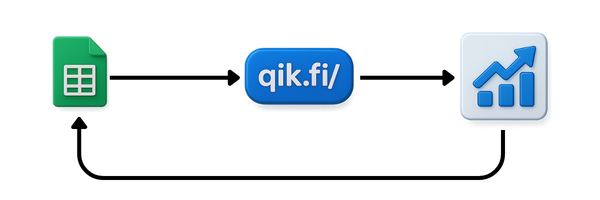
The Spreadsheet-First Campaign Tracking Workflow
Here’s the workflow that works well for teams that live in Sheets:
- Plan campaigns in Google Sheets (you already do this)
- Create campaign links (often with UTMs)
- Generate short links (ideally in bulk)
- Track clicks by link
- Pull results into the same spreadsheet
- Report with pivots/charts directly in Sheets
This approach is simple, scalable, and very easy to share with teammates or clients.
What You Can Measure With Link-Level Tracking
With link-level tracking (instead of full-site analytics), you can usually track:
- Total clicks per link
- Clicks over time (daily trend)
- Country breakdown
- Device type breakdown (mobile/desktop/tablet)
This is enough for most campaign reporting, especially for:
- influencer campaigns
- paid experiments
- launch announcements
- partner links
- newsletters
- social posts
And because the data lands in Sheets, you can do what marketers already do best:
- compare campaigns side by side
- create weekly reports
- share a read-only dashboard sheet with clients
- annotate campaign context (“post went live here”, “creative changed here”)
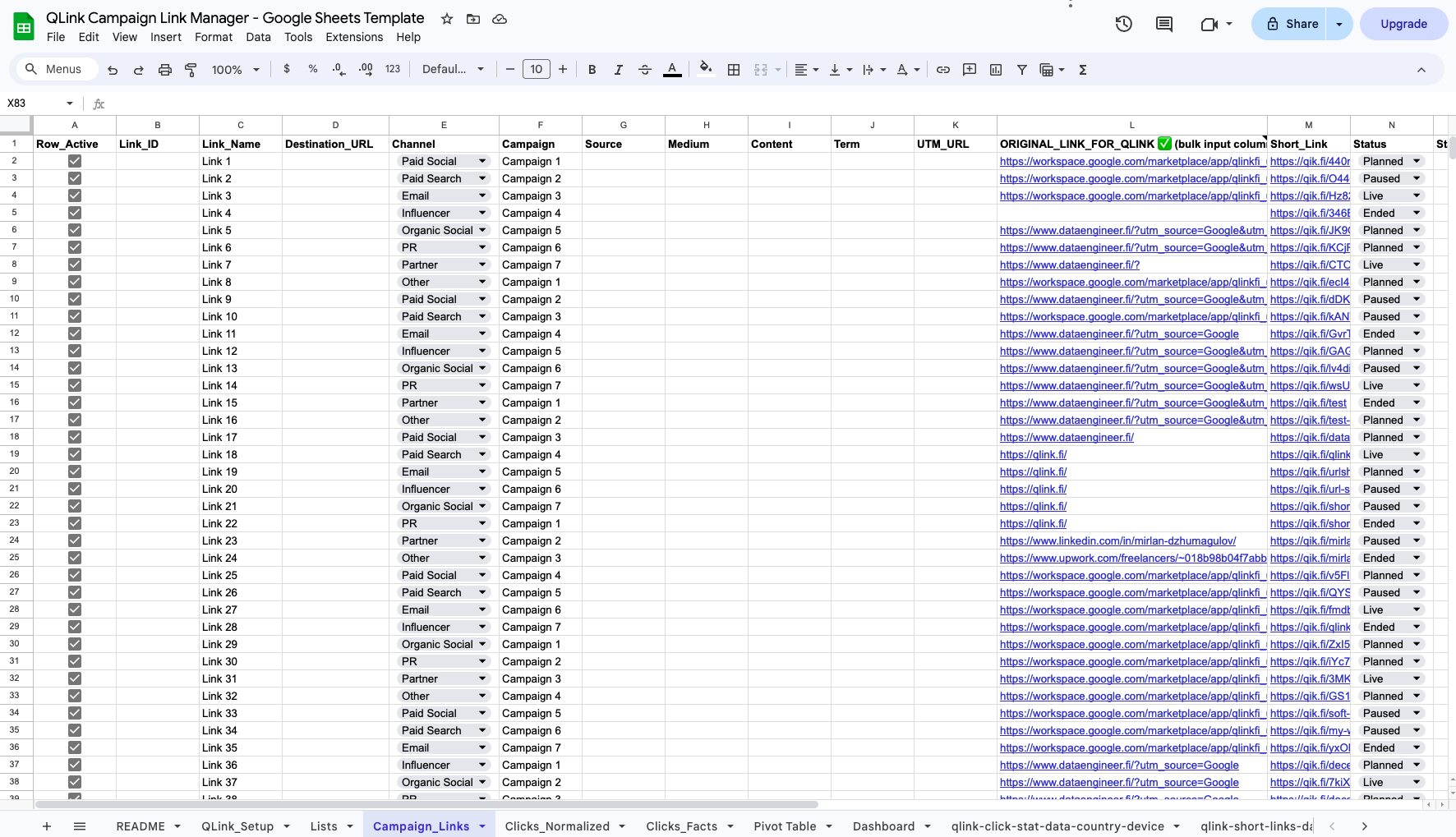
Example: Campaign Tracking Table in Google Sheets
A practical campaign tracking sheet typically includes columns like:
- Destination URL
- Campaign name
- Channel
- UTM source / medium / campaign (optional)
- Short link
- Total clicks
- Clicks by date
- Clicks by country
- Clicks by device
- Notes / status
This structure turns your sheet into a campaign system, not just a list of URLs.
A Common Mistake: Using GA for Everything
Many teams try to use GA as the answer to every reporting question. The result is usually:
- dashboards nobody checks
- inconsistent UTM usage
- campaign links created in multiple places
- numbers copied manually into spreadsheets
- unclear “which link is which”
When the goal is campaign link performance, it’s often more efficient to track campaign links at the link level and report in Sheets.
How QLink Helps With Campaign Tracking in Google Sheets
If your campaigns live in spreadsheets, QLink fits naturally into the workflow:
- Create short links directly in Google Sheets
- Generate links in bulk (instead of one-by-one)
- Use custom back-halves for readable, campaign-friendly URLs
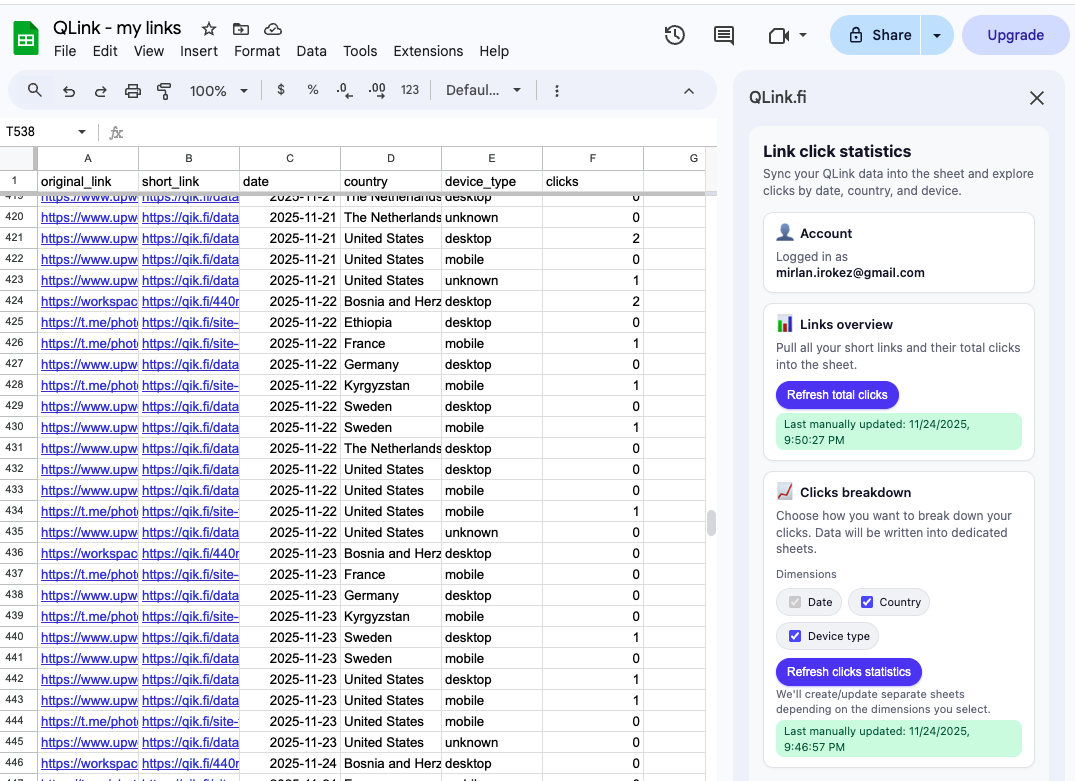
- Export click analytics back into Sheets, aggregated by:
- date
- country
- device type
- Privacy-first, ad-free, EU-hosted
This means you can run campaign tracking without maintaining a separate dashboard workflow.
Try the Workflow (2 options)
Option A: Install QLink for Google Sheets (Free)
Create bulk short links and track click analytics directly in your spreadsheet.
Option B: Use the Campaign Link Manager Template
If you prefer starting with a ready-to-use sheet, use the Campaign Link Manager template and connect QLink in minutes.
Reassurance: Free plan available • No ads • EU-hosted • Cancel anytime
Related Guides
If you want the complete “campaign link system” approach, read:
- How to Manage Campaign Links in Google Sheets (Bulk Short Links + Click Analytics)
- Bitly Bulk Links Alternative for Google Sheets
FAQ
Is this approach accurate if the same person clicks multiple times?
Link-level tracking counts clicks, not unique users. For many campaign reports (especially short time windows), click trends are still very useful. If you need user-level behavior and conversions, use GA or product analytics in parallel.
Does link tracking work for app store links and influencer campaigns?
Yes — that’s actually one of the best use cases. You can track campaign link performance even when you don’t control the destination website analytics.
Do I still need UTMs?
UTMs are helpful if you also use GA or other analytics tools. But for basic campaign reporting inside Sheets, link-level tracking can be enough on its own.